
To automate document workflows, you map one repetitive process, write down its rules, and let software handle the routing, reminders, filing and status updates. People keep the decisions. Start with a single document type, such as contracts, invoices or onboarding packets, and build outward once it runs cleanly. At GLPS Memphis, we begin every engagement by understanding how your team really works before we build anything, because software only speeds up the process you already have.
TL;DR
- Document workflow automation covers the whole path of a file: creation, routing, review, approval, storage and retention. It is more than scanning or filling templates.
- Pick a process with clear rules, high volume, few exceptions and obvious waiting time. Fix unclear rules before you automate.
- Every workflow has four parts: a trigger, routing, approval and output. Map each one, plus the exception paths, before you build.
- Check access control, logging and integrations before launch, then measure hours saved and error rates against your starting point.
- Existing tools suit standard processes. Custom software pays off when your process, systems or volume do not fit them.
Table of Contents
- What document workflow automation actually is
- Step 1: Choose the process, not the tool
- Step 2: Map the workflow so a machine can follow it
- Step 3: Build the four parts of the workflow
- Step 4: Check security, access and reliability before launch
- Step 5: Test with real documents and measure the result
- Configure existing tools or build custom?
- Where GLPS Memphis fits
- FAQ
- Sources
What document workflow automation actually is
A document workflow is the path a file takes through your business: someone creates or receives it, the right people review it, someone approves it, and it gets filed where it can be found later. Automation takes over the repetitive handling in that path. FlowForma’s guide draws a useful line: scanning a paper form or generating a document from a template is not a workflow. A workflow handles the decision path around the file, including ordered or parallel approvals, reminders, escalations, delegated approvals, searchable storage and retention records.
In plain terms, the software does the chasing, copying and filing so your people only do the thinking.
Documents that are worth automating first
The best candidates are documents that move through the same steps again and again. Across the practical guides, the same list keeps coming up:
- Client intake forms and engagement letters
- Contracts that need review and signature
- Invoices and other financial paperwork
- Employee onboarding packets and policy acknowledgments
- Compliance and incident reports
- Proposals and quotes
Assembly’s walkthrough lists intake forms, contracts, invoices, tax documents and onboarding paperwork as typical examples. DocuPilot names contracts, invoices, offer letters, compliance reports and proposals. Notice what these share: a clear trigger, a known set of reviewers and a predictable end state.
Step 1: Choose the process, not the tool
Most failed automation projects start with a software purchase and end with a messy process running faster. Assembly’s guidance puts it bluntly: automation applies to whatever process you already have, so a disorganized workflow stays disorganized, only quicker. Pick the process first.
Cogniver’s process-selection guide suggests scoring each candidate on six factors: volume, rule clarity, number of handoffs, exception rate, risk and reporting need. A simple version works for a small team:
| Factor | Strong candidate | Weak candidate |
|---|---|---|
| Volume | Dozens of documents a week | A few a quarter |
| Rules | “Over $5,000 goes to the owner” | “It depends who is in the office” |
| Handoffs | Three or more people touch it | One person does everything |
| Exceptions | Rare | Most documents are special cases |
| Visible cost | Reminders, status emails, chasing | Little coordination effort |
If the rules are unclear, standardize the process by hand first. Automating a process nobody agrees on only hardcodes the disagreement.
You also need a named process owner. Cogniver’s advice is to give accountability for the design to one person rather than to every approver or to the software vendor. That person decides what “done” means and signs off on changes later.
Step 2: Map the workflow so a machine can follow it
A map that works for automation is more detailed than a flowchart on a whiteboard. Cogniver’s mapping guide says it should identify the trigger, outcome, tasks, decisions, handoffs, owners, systems, inputs, outputs, delays, controls and exception paths. Three habits make the difference:
- Write a one-sentence scope. Use an event you can observe: “From the moment a purchase request is submitted until the vendor receives an approved purchase order.”
- State each rule so it can be tested. “Large orders need extra approval” is not testable. “Orders above $5,000 need the finance lead’s approval” is.
- Assign roles, not names. “Department manager” survives a resignation or a vacation. “Dana” does not.
Mark every point where a person must review, approve or resolve ambiguity. Those points stay human. Cogniver’s phrasing of the principle is worth keeping: let people decide where judgment matters, and automate the routing, validation, reminders and recordkeeping around those decisions.
Find the waiting time
While you map, note where documents sit idle. A contract that waits three days in someone’s inbox is a delay, not a task. We cover where these delays come from in our guide to business process delays, and the same hunt applies to document flows. Waiting is usually the cheapest thing to automate and the one your team feels most.
If you are mapping a flow that involves several parties, such as a procurement cycle, a breakdown of procurement workflow steps and roles shows how handoffs and approvers line up in a real process and where speed is usually lost.
Step 3: Build the four parts of the workflow
Templafy’s overview breaks every automated document workflow into four components. Use them as your build checklist.
Trigger
The trigger is the event that starts the workflow: a form submission, a new file in a folder, or a status change in a system such as your CRM. Where it goes wrong: triggers that depend on how people behave. A file that someone moves by hand or a request sent by text instead of the form never starts anything. Decide the one doorway documents must enter through, and make it the easy one.
Routing
Routing sends the document to the right people in the right order. Use your roles from the map. Decide which approvals are sequential (finance after the manager) and which can run in parallel (legal and finance together). Where it goes wrong: an approver who is out of office. Build in delegation and an escalation rule from the start.
Approval
Approval collects comments and sign-off, with reminders if nobody responds, and records who approved what and when. Where it goes wrong: reminders that nag everyone equally. Set them to escalate to a manager after a defined wait, so a stalled document becomes visible.
Output
Output is where the finished document lands: filed in searchable storage with consistent names and metadata, sent to the client, or used to update another system. A document that is approved but not findable has not been automated, only moved. This is where integration matters. When approved data has to flow into accounting, HR or a CRM, how your systems connect decides whether you remove retyping or merely relocate it. Our practical guide to business software integration walks through what small teams should check.
Design the exception path
Every real workflow has documents that do not fit. Assembly notes that blurry scans, missing signatures and unusual contract clauses still need a person, and that a realistic goal is handling most documents most of the time, not all of them. Give exceptions a destination: a named person, a queue, and a deadline. If they have nowhere to go, they pile up unseen and the automation loses your team’s trust.
The same idea applies to intake that needs verification. A pipeline that collects, checks and files compliance paperwork, such as employment screening notices and documents, shows how a defined sequence with an evidence trail replaces a folder of loose attachments.
Step 4: Check security, access and reliability before launch
Documents carry contracts, tax data and personal information, so treat the automation as a system that handles sensitive records. Microsoft’s secure document automation reference architecture is a good model of what a careful build includes, whatever platform you use:
- Controlled intake. Documents arrive through dedicated, monitored channels rather than anyone’s personal inbox.
- Private connectivity. Processing runs on private network connections where possible.
- Secrets kept out of the workflow. Credentials live in a managed vault, not inside flows or spreadsheets.
- Group-based access. Permissions follow security groups tied to roles, so access changes when roles change.
- Retries, logging and auditing. Failed steps retry in an orderly way, and centralized logs show what happened to every document.
For a small business the translation is simple. Ask who can see each folder and why. Ask what happens when a step fails at 2 a.m. Ask where the log lives and who reads it. And review permissions on a schedule, since roles drift over time.
Step 5: Test with real documents and measure the result
Test against the messy documents you actually receive, not clean samples. Run old and new in parallel for a short period, then compare. Track three numbers from the start:
- Cycle time: hours or days from trigger to filed document.
- Touches per document: how many times a person handled it by hand.
- Error and rework rate: misfiled documents, missing signatures, wrong versions.
Record the baseline before you change anything, or you cannot prove the gain later.
Large organizations report real numbers when they do this. A CDISC case study on Merck and Veeva’s clinical document automation reports a bot that auto-classified 1.02 million documents, saving 18,000 hours a year while reducing misfiling risk. Your scale will differ, but the logic is the same: classification, filing and chasing are hours that add up quietly.
Configure existing tools or build custom?
This is the question most owners really have. Our view is that it depends on how standard your process is.
Existing tools fit when the process is common (a simple approval, an e-signature, a form that fills a folder), your systems already connect to them, and you can live with how the tool wants you to work. Even then, expect setup effort. Assembly points out that low-code tools still require upfront workflow mapping and testing.
Custom software fits when:
- Your process has rules or handoffs that off-the-shelf tools cannot express without awkward workarounds.
- Documents must move between systems that do not connect cleanly.
- Staff keep working outside the tool because it does not match how the job is done.
- You need the system to change as your operations change.
Our guide to custom business software explains when it pays off. The practical advice: map first, then decide. The map tells you how much of your process is standard and how much is yours.
Where GLPS Memphis fits
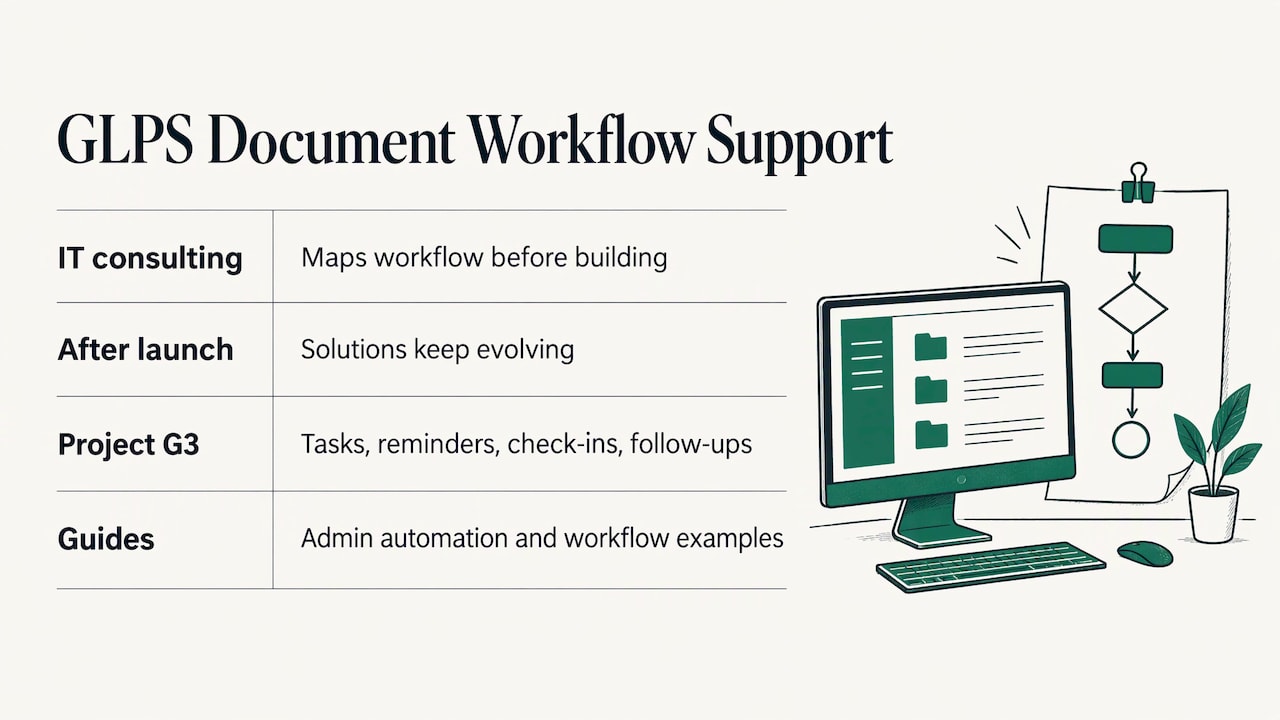
The steps above are the same whether you handle them yourself or with help. The hard parts are mapping the real workflow, writing the rules and keeping the system useful after launch. That is the work we do in our IT consulting engagements: we understand your specific workflow before building, and our solutions keep evolving after launch.
For the coordination around your documents, Project G3 is our AI-powered assistant for tasks, reminders, check-ins and follow-ups, the chasing that stalls approvals and sign-offs. You can read more on the Project G3 page. If your process is part of a wider effort to cut manual work, our guides on automating administrative tasks and workflow automation examples show what that looks like for small and mid-size businesses.
If you want a second pair of eyes on a document process before you automate it, talk to us through the GLPS Memphis consulting page.
FAQ
What is the difference between document automation and document workflow automation?
Document automation generates a file, for example filling a contract from a template. Document workflow automation manages everything around it: who reviews it, in what order, what reminders go out, where it is stored and how long it is kept. Most businesses need both, but the workflow side is where the waiting time disappears.
Which document process should I automate first?
Choose one with high volume, clear rules, several handoffs and few exceptions. Contract approvals, invoice routing and onboarding packets are common first picks. Avoid starting with a process people still argue about, since automation will lock in the confusion.
Can I automate a document workflow without replacing my current software?
Often yes. The aim is to connect what you already use so documents and data move between systems without retyping. Check how your tools exchange data first, and map the workflow before choosing what to add.
How do I know the automation is working?
Compare against your baseline: cycle time, manual touches per document and error rate. If those three numbers improve over a few weeks of real use, and exceptions are being resolved rather than piling up, the workflow is doing its job.
Sources
- Document Workflow Automation: SharePoint Integration Guide (FlowForma)
- Document process automation: How it works (Assembly)
- Document Workflow Automation Explained With Examples (DocuPilot)
- How to Identify Processes to Automate (Cogniver)
- Map a Process for Automation in 7 Practical Steps (Cogniver)
- What is document workflow automation? (Templafy)
- Secure intelligent document processing reference architecture (Microsoft Learn)
- How Merck and Veeva Drive Efficiencies and Quality with AI (CDISC)
Leave a Reply